Using the |
 |
|
Printing Tool |
You can save your signed document electronically and print it at the same time.
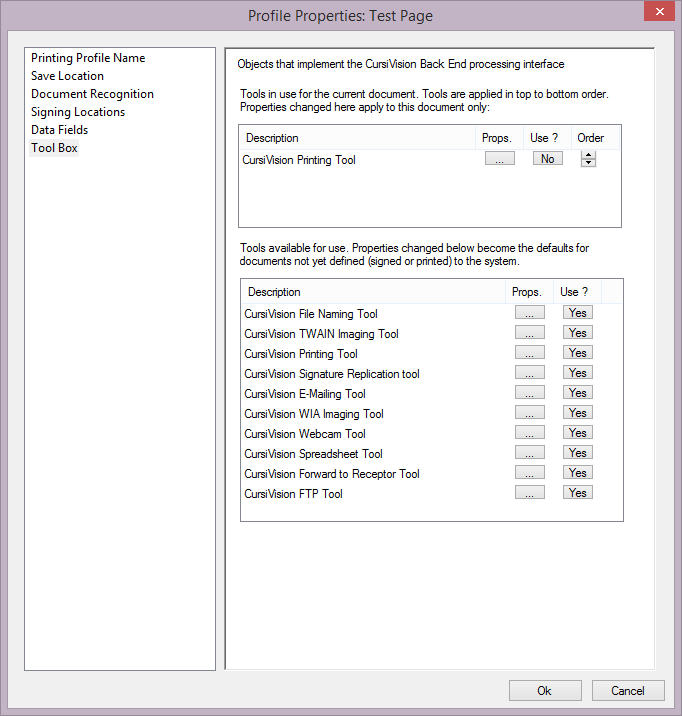
To use the Printing tool, select the Tool Box category from the settings pages, and ensure that the tool is selected into the upper list of tools by clicking Yes for the tool in the lower list.
You should see your Tool Box as follows in Figure 1. Of course - other tools may also be used in conjunction with this.
|
| Figure 1. The Tool Box selection, with the Printing tool ready for use. |
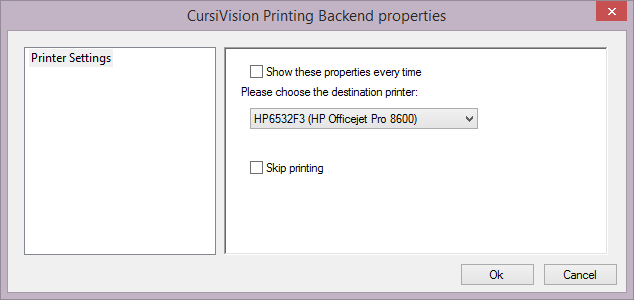
The only setting for this tool is to select the destination printer. Note that the destination printer could be a network shared CursiVision printer on some other machine on the network. Printing to that printer would bring up CursiVision with a ready to sign document on the computer sharing it.
|
| Figure 2. The Printer tool configuration options |
Simply select your target printer from the list shown in Figure 2 (one is already selected in the Figure), and click Save. Now, every document (of this type) signed will also produce a hard copy as well.
The "Show properties every time" option is available if you want to choose the printer at the time the document is signed. The destination printer may be dependent on the context of the session, for example. The "Skip printing" option allows you to turn the feature off for a period of time while saving the configuration properties for when you need to turn it back on. This is as opposed to takeing the tool out of the tools list, which would cause the configuration settings to be lost.
Usage instruction for other tools from the CursiVision Toolbox can be seen here:
- File Naming tool
- Imaging (scanner) tools
- E-Mail tool
- Webcam tool
- Spreadsheet Logging tool
- Forward to Receptor tool
- FTP tool
- Generic tool