Using the |
 |
|
FTP Tool |
After the document is signed, it can be transferred to any system via FTP (File Transfer Protocol).
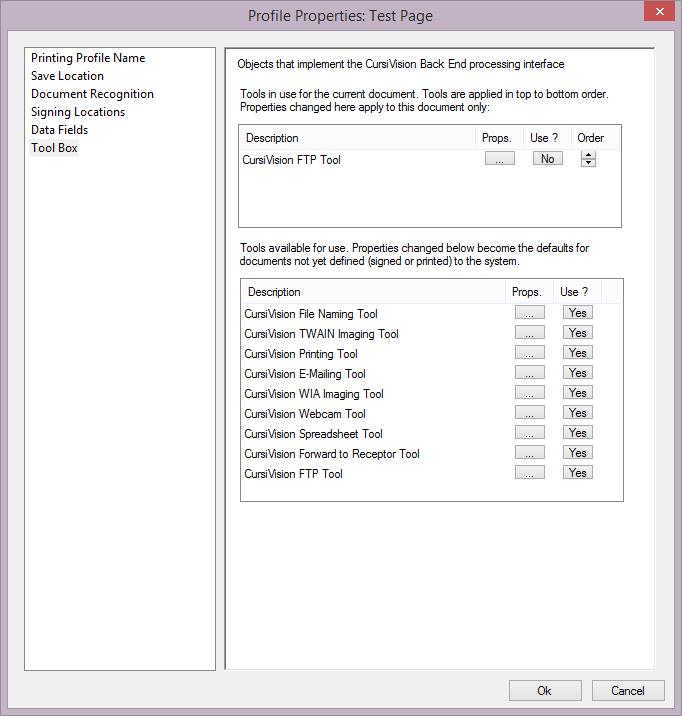
To use the FTP tool, select the Tool Box category from the settings pages, and ensure that the tool is selected into the upper list of tools by clicking Yes for the tool in the lower list.
You should see your Tool Box as follows in Figure 1, the FTP tool is ready for use. After documents of this type are signed, the document will be uploaded to the computer configured per the properties described in this section.
|
| Figure 1. The Tool Box selection, with the FTP tool ready for use. |
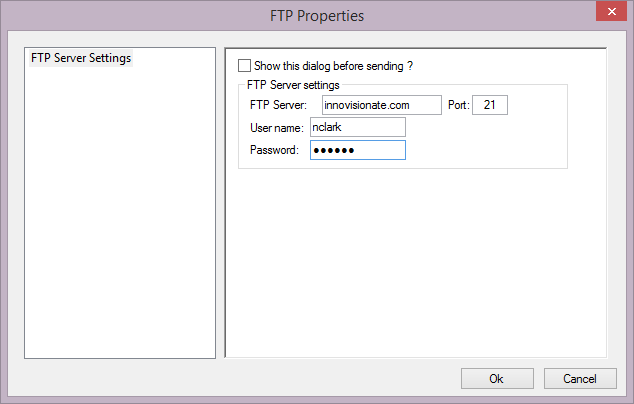
Click on the props button for the tool in the upper list and you will be presented with settings as depicted in Figure 2.
|
| Figure 2. FTP tool properties |
Note that this tool works with simple FTP communications with some server, visible, of course, to the computer wich is running CursiVision at the time of document signing.
Our example has the property values provided already, you should, of course, change these based on your locally available server.
Now, when the document is signed, it will appear on the FTP server computer.
Usage instruction for other tools from the CursiVision Toolbox can be seen here:
- File Naming tool
- Imaging (scanner) tools
- Printing tool
- E-Mail tool
- Webcam tool
- Spreadsheet Logging tool
- Forward to Receptor tool
- Generic tool