Understanding the |
 |
|
Document and Print Profile settings |
CursiVision is focused on repeatable processes that can help with business and personal productivity by learning what you do with the documents you write to or sign on, and automating the signing experience in the future.
The system relies on precise document recognition technology to identify documents so that the appropriate settings can be applied whenever that type of document is encountered again. To learn more about Document recognition, click here.
Remember that every document you write on with CursiVision will have it's own unique settings.
There are two places where you can peruse and change the document settings, these are:
- The Global settings.
These are the settings that will be applied to documents that have not yet been encountered by CursiVision - either by opening a PDF file directly, or by printing a new document through the CursiVision print driver.
Essentially, the global settings are the default settings. When you change these settings, you are specifying what should happen with future documents.
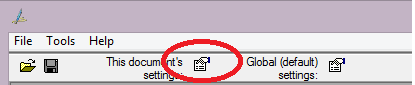
- The Document settings are (the first time a document is encountered) copied from the global settings at the time of the first encounter. Thereafter, these settings can be changed at any time and those changes affect no other documents.
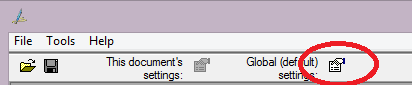
To access the Global properties, click the properties icon in the CursiVision toolbar.
|
| Figure 1. The CursiVision toolbar: Changing the Global Settings. |
|
| Figure 2. The CursiVision toolbar: Changing the Document Settings. |
Note: In the following descriptions, Global and Document settings are the same, one (document settings) is just a copy of the other (global settings) made at the time when the document was first encountered. Minor exceptions will be noted.
You can also reset the document settings by choosing "Reset all settings for ..." from the main menu Tools option, this will cause that document to recieve a copy of the current global settings.
When you select one of the settings options, you will see:
|
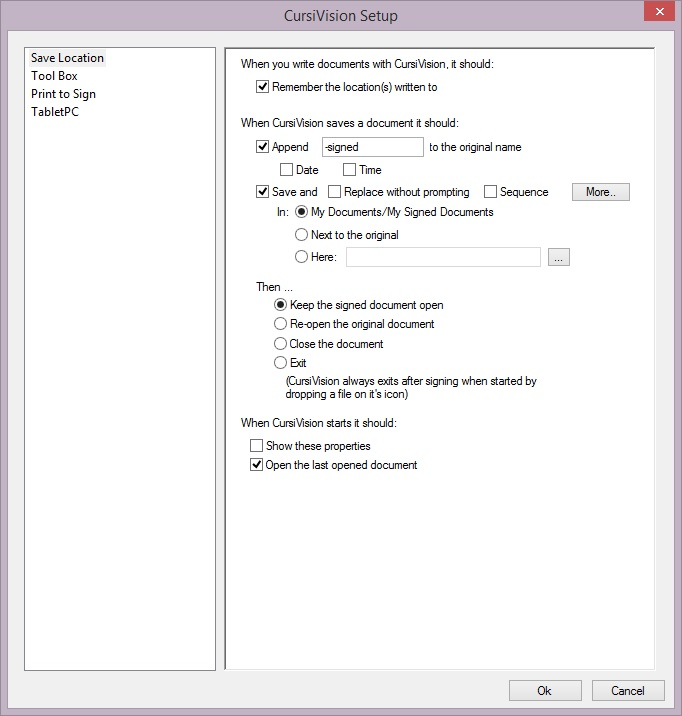
| Figure 3. The Main File Saving options page |
Recalling that CursiVision can sign (write into) a document in multiple places, and can remember them for the next time the document is signed, the setting at the top of Figure 3 indicates that CursiVision should remember the locations you sign, and then present these locations in a series for this document from then on.
If you leave this option off, then you navigate the document manually to the sign location(s) and save the document when finished.
The middle section of Figure 3 contains the options for saving the signed document. There are multiple options for appending information to the root name (the base name of the source document), for choosing where to put the document, and whether or not to automatically replace an existing copy.
The "More..." option presents a very useful feature. It allows you to save the file(s) in sub-directories created based on the current month and year, or based on the day of the month, or both. With this feature - your signed documents will fall into buckets that can be quickly located when you need to find a document and you know when, or about when, it was signed.
Other options available when saving the document are what should CursiVision do after saving it. With automated business processes, receipts presented to customers to sign, for example, you would typically have CursiVision exit after saving it.
This way, staff does not have to close the CursiVision application - it simply "goes away" after the signature is captured.
The "front end" of this automation is, of course, the use of the CursiVision print driver from the windows application. In this scenario, CursiVision automatically launches with the document in view - automates the flow of signature capture through the document, saves the document, and exits.
Note: The default option on the post document save option is to keep the signed document open. This can cause confusion because the settings for the signed document are for a different document than the document that was to be signed. Said another way, when you sign and save a document - it is now a different document that you are looking at.
For more information about the other settings, please check out the following links:
- The CursiVision Tool Box
- Signing LocationsSigning Locations
- The CursiVision Print Profiles
- Using the CursiVision Data Fields
- Setting the pen ink width and colorink width and color.