Managing the |
 |
|
Print Profiles |
Print "profiles" are the settings for documents that have been printed to the CursiVision print driver.
When a document arrives at CursiVision (the system is launched when it recieves a printed document from the driver), print profiles are searched for a "match" in order to recognize the document and to apply the custom settings for that document.
A match is found when certain text at a precise location is found in the document. That text, and the location(s), is defined by you when you first print a document. You define it in the "Document Recognition" page of the properties (or profile) that is automatically presented for each new (unrecognized) document type. For more information, see Document Recognition.
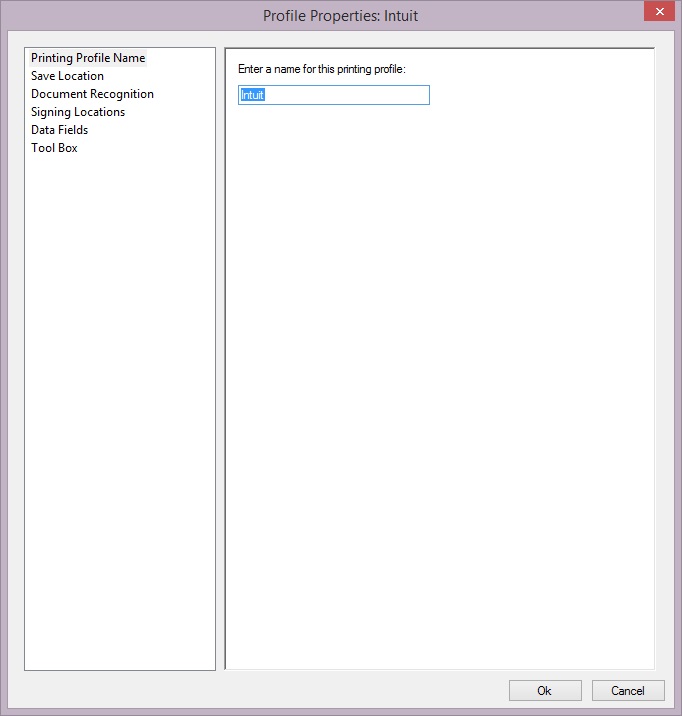
In the figure below, we show the Print Profile management window.
|
| Figure 1. Print profile management |
These options are available by clicking Global Properties int the toolbar, and then the Print To Sign page. Note that all of the print profiles defined in the system will be in the selection box at the top. You can change the settings of any profile by selecting it and choosing Settings.
Note also in the figure a "Just Sign" button in the upper right. If you simply want to sign this document one time and probably won't see it again in the future, selecting this causes the system to NOT create the print profile for it. You don't see this button when you manage profiles from global properties, you only see it when a new document is being printed and the profile was just now automatically created for it. If you choose "Just Sign", the profile will not be saved.
Note as well that there is an option to "Use this profile for every printed document". This simply means that you can prevent CursiVision from creating any new profiles, no matter what document is printed in the future - it will have the same options (file saving location, tool box items used, etc) as the profile selected from the profile list at the top.
If you subsequently print a document and find that you are presented with the properties dialogs as if it were a new (automatically created) print profile, double check your document recognition settings. If you forget to set the document recognition rectangles (more here) the system will not find the match for the profile.